

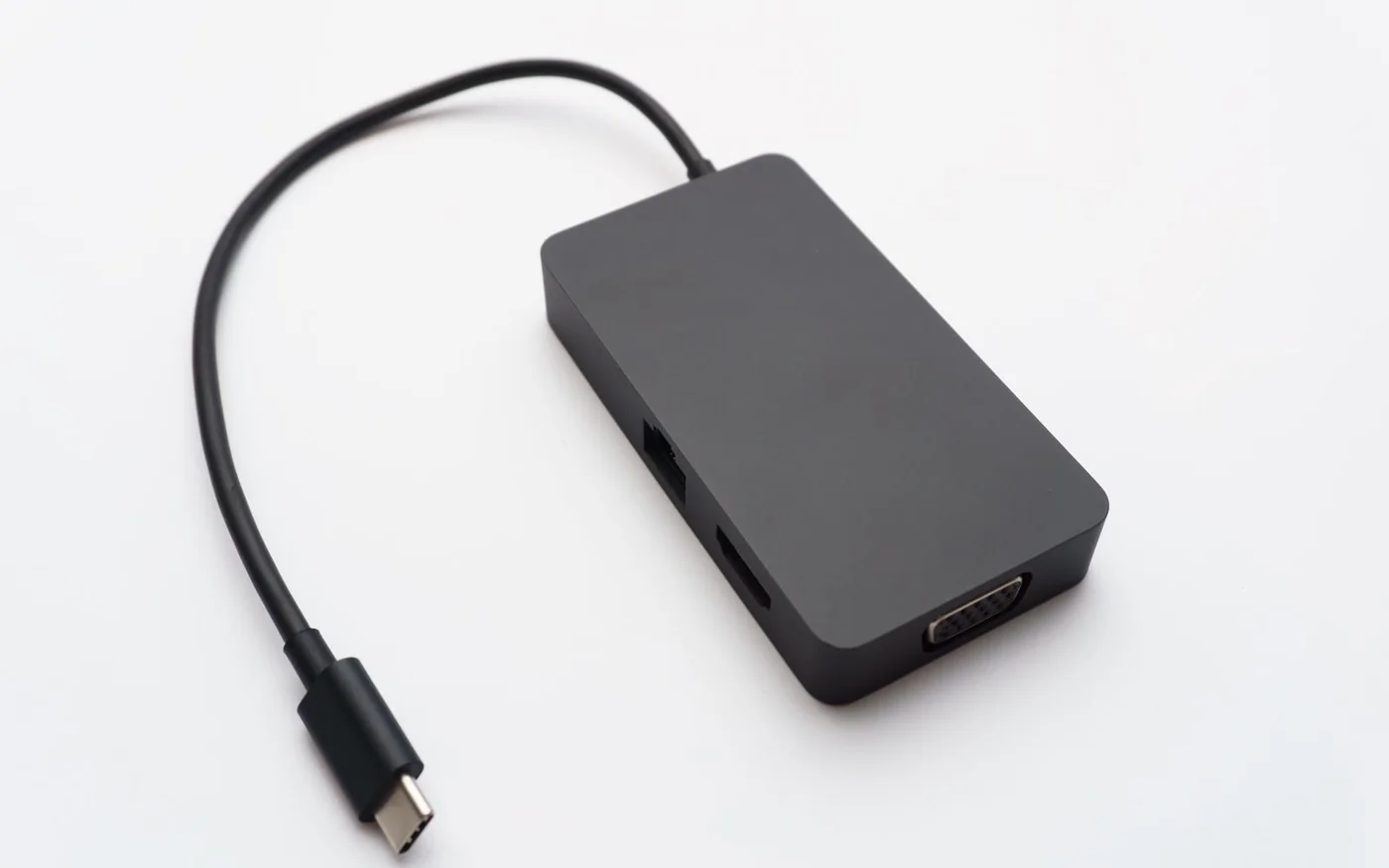
Before you buy a dock, find the specification for the exact USB-C port you plan to use. A laptop can have two USB-C sockets that look alike and offer different functions. For a single HDMI screen, look for video support on the host port and the resolution and refresh rate you need. For two extended displays, check the laptop, its operating system and the dock's supported combination of outputs. For one-cable charging, compare what the dock delivers to the laptop with what the laptop needs during a normal workday.
For travel with one screen, the Belkin AVC009 is the small option in this comparison. Its HDMI tops out at 4K at 30 Hz. The Dell WD19S-130W makes more sense for a Windows desk with two ordinary monitors once you know its DisplayPort bandwidth. The Dell SD25TB4 is the Thunderbolt option. It can also suit a compatible two-screen Mac, provided one screen takes the downstream Thunderbolt route Dell specifies. Those three desks ask different things of the same-looking plug.
Exact UAE listings checked
| Dock and seller | Display job to check | Power arrangement | Public price and availability on 6 November 2026 |
|---|---|---|---|
| Belkin Connect 7-in-1 AVC009btSGY, Rudy | One HDMI screen, up to 4K at 30 Hz | Separate USB-C PD charger for pass-through, up to 100 W input with 15 W reserved by hub | AED 175 displayed, product detail shows available and Add to Cart |
| Dell WD19S-130W, Headway Computer via Microless | Two extended displays on a compatible host, with resolution set by bandwidth and port pair | 130 W adapter configuration, up to 90 W to a compatible Dell laptop | AED 769 incl. VAT, in stock |
| Dell Pro Thunderbolt 4 Smart Dock SD25TB4, Microless | Compatible Thunderbolt desk, with separate Windows and Mac display routing checks | Dell specifies a 180 W adapter, up to 130 W to Dell computers and 96 W to non-Dell computers | AED 945 incl. VAT, in stock |
These are product-page prices. Microless distinguishes who sells the item from who fulfils it. The WD19S price was on a Headway Computer offer fulfilled by Microless. The SD25TB4 price was on the offer sold and fulfilled by Microless itself. Rudy's product area showed the exact Belkin model as available with a purchase control, although the page also contained a generic unavailable message. Confirm stock and the box contents before travelling or relying on a delivery date. Rudy Belkin AVC009 listing · Microless WD19S offer · Microless SD25TB4 offer
Belkin AVC009 for a presentation or a single travel screen
This Belkin is the smallest commitment if the main job is connecting a laptop to a meeting-room display and reading an SD card. Its official AVC009 documentation identifies one HDMI output, USB-A data ports, card readers and an audio jack. Check the manufacturer's port list because a retailer's generic copy can describe a different seven-port layout. The AVC009's HDMI limit is 4K at 30 Hz. That may be enough for a slide deck. If you spend hours dragging windows, scrolling or working in a large design file on a 4K monitor, decide whether you want a verified 60 Hz path before buying. Belkin AVC009 support
For video, your laptop's USB-C port must support DisplayPort Alt Mode or a compatible video path. For charging through the hub, your laptop and charger must also support USB Power Delivery. Belkin quotes up to 100 W pass-through input and says the hub needs 15 W to operate. With a compatible 100 W source and cable, the arithmetic leaves up to 85 W for the host. Bring a separate compatible charger if pass-through power matters. Starting with a smaller charger reduces the headroom for the laptop. This can be fine for a presentation and less useful for a laptop that needs more power while running a heavier job. Belkin AVC009 support
Before packing for a presentation, check the room's input and cable position. A short hub lead that sits comfortably beside a laptop on a desk may dangle when you connect to a wall cable. Give the adapter a surface to rest on. Check the direction of the plugs and leave space for the laptop's power cable if you decide to connect the charger directly. For one screen plus occasional peripherals, these physical details can be more useful than a longer port list.
Dell WD19S-130W for a Windows desk with two screens
The WD19S needs a host USB-C connection with DisplayPort video support. Its two rear DisplayPorts make it a practical fit for two office monitors on a Windows laptop that supports the relevant DisplayPort Multi-Stream Transport configuration. In Dell's WD19S display table, two 1080p displays at 60 Hz are listed on the HBR2 link using supported output pairs. Two 1440p displays at 60 Hz are listed on HBR3 without Display Stream Compression. Two 4K displays at 60 Hz are listed on HBR3 with DSC for supported pairs. Treat those as conditional configurations. A retailer headline mentioning dual 4K cannot tell you which row applies to your laptop. Dell WD19S display resolution table
Look at the actual ports you will connect. Two DisplayPort monitors can use the two DisplayPort outputs with suitable cables. If one screen takes HDMI and the other takes DisplayPort, Dell lists that pair too. The dock's rear HDMI and multifunction USB-C video output share a choice. Dell says those two ports cannot drive dual displays together. That detail matters if you were planning on HDMI for an older monitor and USB-C for the newer one. Check whether the newer screen can take DisplayPort instead, and whether you already own the required cable. Dell WD19S display resolution table
The 130 W in this offer identifies the adapter configuration. Dell specifies up to 90 W host power for the 130 W WD19S on a compatible Dell setup. If you're connecting a different brand, check the laptop's compatible charging modes and avoid assuming the same power or vendor features. For a second-hand or replacement unit, ask for the exact adapter and mains lead to be named in the box contents. A cheaper bare dock is a different offer if you still have to find the right power supply. Dell WD19S quick-start guide · Microless WD19S offer
Dell SD25TB4 for a Thunderbolt desk, including the right Mac
The SD25TB4 is the option to examine when you have a compatible Thunderbolt laptop and want a permanent desk with multiple displays, wired networking and peripherals. Dell specifies a 180 W AC adapter, up to 130 W to Dell computers and up to 96 W to non-Dell computers. That 180 W brick powers the dock and its connected setup. The laptop takes the power it can negotiate. If you run a workstation that needs more than the dock supplies, plan to use its own adapter too. Check the package lists the 180 W supply and a suitable mains lead before buying an imported or repacked unit. Dell SD25TB4 specifications
On a Mac, check the exact model first. Apple lists up to two external displays alongside the built-in display for the M5 MacBook Air, subject to resolution and refresh rate. Earlier models have their own limits. Then follow Dell's connection diagram. For two separate desktops through the SD25TB4 on a supported Mac, Dell shows one monitor connected through the dock's DisplayPort, HDMI or video-capable USB-C path, and the second through its downstream Thunderbolt port. Using both DisplayPort outputs or a DisplayPort plus HDMI pair can mirror because macOS lacks the relevant MST extended-desktop support. A monitor that only accepts HDMI may need the appropriate adapter on the Thunderbolt path. Confirm its resolution and refresh rate too. Apple MacBook Air external display guide · Dell Thunderbolt docks with Apple hosts
For Windows, use Dell's SD25TB4 display combinations and the laptop's specifications together. A designer with two 4K monitors and a fast external SSD is using the dock differently from someone with two 1080p monitors and a keyboard. Identify which screen must keep its full refresh rate and which ports your drives require. If you also need features such as a dock power button that controls the laptop, verify that exact model in Dell's compatibility notes. Dell SD25TB4 display combinations · Dell SD25TB4 specifications
Account for the cables and power you will use every day
If your laptop already has a dedicated charging connector, decide whether one-cable docking is worth paying for. Leaving the original charger on the desk can make a compact hub useful even when its power budget is too small. If you carry the charger between work and home, the power brick supplied with a desk dock saves that daily swap. Check the length of the host lead before putting the dock under the desk or on the opposite side of the laptop. A lead that reaches while the lid is shut may pull across the keyboard area when you move the laptop to a stand.
Plan the displays before you buy adapters. For a screen with HDMI and DisplayPort, use the input that makes the supported pairing simpler. A USB-C lead bought for charging can lack the data or video capability your connection requires. Read the cable specifications for each link, especially for the Mac's downstream Thunderbolt screen. If one monitor works and the second does not, swapping the two screens onto a known working cable and input helps separate a cable problem from a display-routing problem.
Keep the other costs tied to what you actually need. The compact hub is a different purchase once you add a charger and a longer screen cable. A higher-priced dock might still require a display adapter for the monitor you already own. Write those extras next to the item price, and use the shipping charge shown for your own delivery area.
Verify the whole desk before opening a second box
Write down the laptop model and operating system, the exact host port, the two monitor models, the refresh rate you expect, and the cable for each leg. If it's a work laptop, ask IT about Thunderbolt permissions, firmware updates and any separate driver requirements before ordering. Some products use DisplayLink, which has a different connection model from the native display examples here. If your purchase depends on that approach, verify the exact dock and software policy first.
Set up one monitor first and confirm its actual resolution and refresh in the operating system. Add the second and check that it extends the desktop, then plug in the Ethernet and peripherals. Test wake from sleep and see whether the laptop reports charging or a power warning under your ordinary load. Try the same setup with your work and personal laptops separately if both need to use the dock. A shared physical connection doesn't guarantee the same display or power result on each.
Microless showed a one-year warranty on the WD19S offer. For either Dell, read the seller's warranty details and confirm who accepts the claim if the fault is in the dock or its power brick. Microless's standard return policy includes sealed-package conditions and asks for prompt reporting of damage or missing items. Rudy's dedicated policy describes a three-day request window and fault or description-related conditions. Ask about an opened compatibility return before relying on it. These policies matter most when a listing leaves the exact monitor combination or power bundle uncertain. Microless returns · Microless warranties · Rudy return policy






Comments (0)
No comments yet. Be the first!